 Christian Rackerseder
 Stop adding console.log: use logpoints instead
PermalinkStop editing code just to print values #
A surprising number of debugging sessions still follow the same pattern:
Add console.log().
Refresh.
Trigger the bug.
Read the output.
Remove the log again.
It works.
But it is also noisier and more invasive than it needs to be.
Browser DevTools have had a better option for years: logpoints.
Logpoints let you print values to the console directly from the debugger, without changing the source code and without pausing execution.
That makes them one of the most underrated debugging tools available for frontend work.
What a logpoint actually is #
A logpoint is attached to a line in DevTools, similar to a breakpoint.
The difference is behavior.
A normal breakpoint pauses execution. A logpoint does not.
It evaluates an expression and writes the result to the console while the application keeps running.
And that expression is not limited to a static string.
You can access variables that are available at that point in execution and log them directly. You can also use template strings to format the output in a way that is actually useful while debugging.
That sounds small, but it changes the workflow significantly.
You can inspect runtime behavior without:
- editing the code
- creating throwaway commits
- risking forgotten debug statements
- changing timing by pausing execution
Where to find logpoints #
Many engineers do not use logpoints for a simple reason:
They do not know the feature exists.
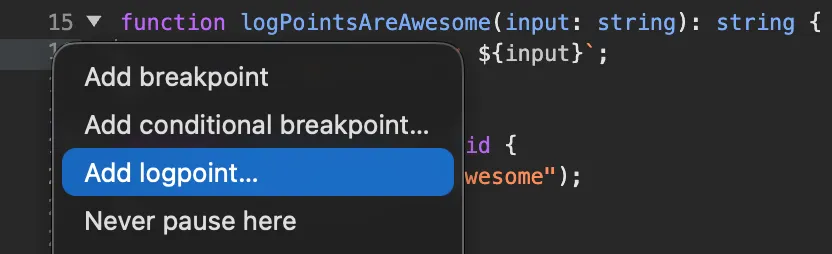
In Chromium-based browser DevTools, you can right-click the line number in the Sources panel and add a logpoint directly from the context menu.
Why this matters in frontend work #
A lot of frontend bugs are not hard because the code is unreadable.
They are hard because they only happen in a certain runtime context.
Maybe a click handler receives unexpected state. Maybe a component renders with stale props. Maybe a request finishes in a surprising order.
In those situations, adding console.log() is often just a reflex.
But it also means modifying the codebase just to observe behavior.
Logpoints are better because observation stays in the tooling layer. Your code stays untouched.
That is especially useful when you are investigating timing-sensitive behavior or trying to inspect one execution path without creating noise in the code.
How to use them #
The workflow is simple:
- open the file in DevTools
- go to the line you care about
- add a logpoint
- enter an expression to print
- trigger the behavior
For example, instead of changing this code:
function submitOrder(order: Order): Promise<void> {
  return apiClient.post("/orders", {
    id: order.id,
    totalPrice: order.totalPrice,
    itemCount: order.items.length
  });
}
you can place a logpoint on the post call and log:
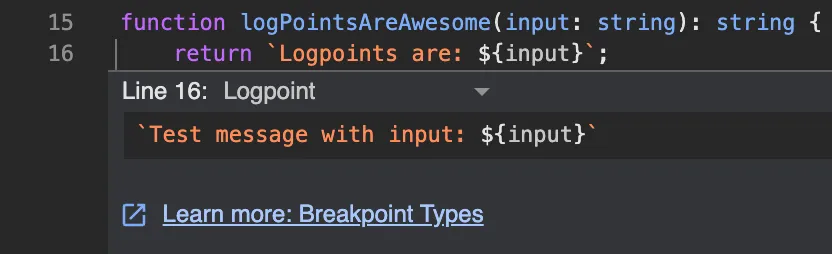
`submitOrder: ${order.id} / ${order.totalPrice} / ${order.items.length}`;That is one of the most useful parts of logpoints: the expression can access variables that are in scope at that exact line.
So you are not limited to writing a generic message. You can inspect real runtime values and format them with a template string without touching the source code.
And if you do not need formatting, you can simply log the variable itself:
order;The DevTools input makes that very direct.
No source edit. No temporary commit. No cleanup afterwards.
Why this is better than a breakpoint in many cases #
Breakpoints are still essential.
Sometimes you do want execution to stop so you can inspect stack, scope and control flow in detail.
But a breakpoint is not always the right tool.
If the code path runs often, pausing can be annoying. If timing matters, pausing can distort the behavior. If you only need one or two values across multiple executions, logging is often enough.
This is where logpoints are useful: more precise than editing the source code and less disruptive than pausing execution.
A simple example from frontend work #
Imagine a save button that sometimes submits the wrong payload.
type SaveUserInput = {
  id: string;
  displayName: string;
  marketingConsent: boolean;
};

async function saveUser(input: SaveUserInput): Promise<void> {
  await fetch("/api/user", {
    method: "POST",
    body: JSON.stringify(input),
    headers: {
      "content-type": "application/json"
    }
  });
}
A common debugging move would be this:
async function saveUser(input: SaveUserInput): Promise<void> {
  console.log("saveUser payload", input);

  await fetch("/api/user", {
    method: "POST",
    body: JSON.stringify(input),
    headers: {
      "content-type": "application/json"
    }
  });
}
That works.
But it is unnecessary.
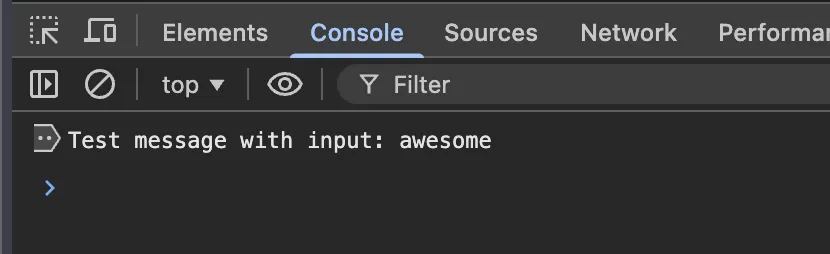
A logpoint on the fetch call can print input directly.
You get the same insight without editing the file.
And the result is exactly what you would expect: a targeted message in the console, without touching the implementation.
When not to use logpoints #
Logpoints are useful, but they are not the answer to every debugging problem.
Use a breakpoint when you need to inspect stack, scope and control flow in detail.
Use proper observability when the problem is in production and you need durable telemetry instead of a local debugging aid.
Use tests when you need repeatable verification rather than one-off inspection.
The point is not that logpoints replace everything else.
The point is that temporary console.log() calls should not be the default answer to every runtime question.
Final thought #
Logpoints will not fix a weak architecture. They will not replace tests. They will not replace proper observability.
But they do improve one very common part of frontend work: understanding what the application is doing right now, at a specific line, with minimal interference.
That is why more web engineers should use them.
Because editing code just to print a value is often a worse workflow than the tools you already have.
Webmentions
No public webmentions yet.